Collector guide
How to Check Card Centering With Your Phone (Accurately)
Check card centering with your phone: camera setup, a step-by-step checklist, the ratio math, PSA thresholds, and the mistakes that skew phone readings.
By Matteo G.
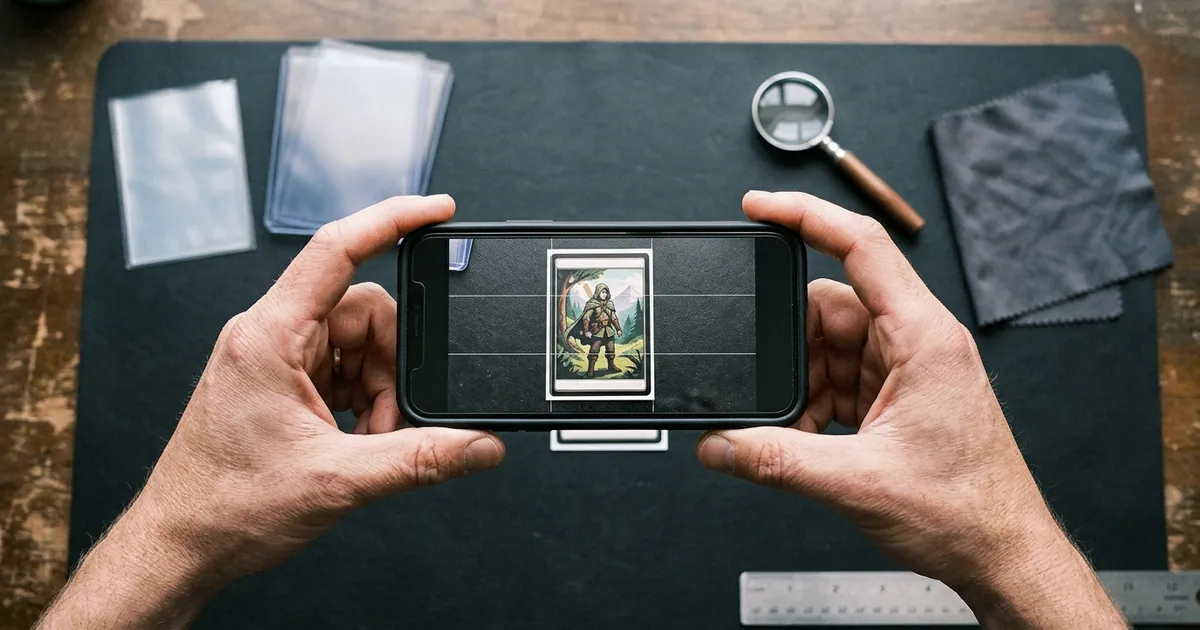
Yes, you can check card centering with your phone accurately enough to screen cards before grading. The trick is to shoot straight down with a level, skip the ultra-wide lens, and measure border widths in the photo instead of eyeballing them on a small screen. A careful phone check sorts cards into three piles: clearly well centered, clearly off, and too close to call. That alone keeps you from paying grading fees on cards that were never going to hit the grade you want.
Key takeaways
- Centering is a ratio of opposite borders: larger border divided by the total of both. Pixels work as well as millimeters because the units cancel out.
- Most phone errors come from tilt and lens distortion, not from the math. Use a level and the 2x or 3x lens.
- Use the rotate-180 test. Re-shoot the card upside down. If the numbers don’t mirror, your setup is skewing the reading.
- PSA’s published standard for a 10 is roughly 55/45 to 60/40 or better on the front and 75/25 or better on the back. Confirm on PSA’s site before you submit.
- If your phone reading lands within a few points of a grade threshold, treat the card as a coin flip, not a lock.
What your phone can (and can’t) tell you about centering
A modern phone camera has more than enough resolution to measure a 2 to 3 mm border down to a fraction of a millimeter. Resolution is not the problem. Geometry is. If the phone isn’t parallel to the card, the side closer to the lens looks bigger. A wide lens held close bends straight lines near the edge of the frame. Either effect can push a true 57/43 card into a reading of 60/40 or 54/46.
A phone check is good for:
- Ruling out cards that are obviously off-center before you spend money
- Comparing several copies of the same card to pick the best one to submit
- Getting a ballpark ratio for listings or trades, labeled as your own estimate
It is not good for:
- Deciding a card is a guaranteed 10
- Settling disputes about a card’s centering in a sale
- Replacing the grader’s measurement, which is the only one that counts on the slab
If you want the full background on measuring with rulers and loupes, see our guide on how to measure card centering. This article covers the phone workflow specifically.
The centering math in 30 seconds
Centering is stated as a pair of percentages for each axis, left/right and top/bottom.
Formula: larger border ÷ (left border + right border) × 100
Say a photo shows a left border of 120 pixels and a right border of 80 pixels. 120 ÷ 200 = 0.60, so the card is 60/40 left to right. Do the same for top and bottom, then flip the card and repeat for the back. Graders judge by the worst axis, so a card that’s 52/48 side to side and 64/36 top to bottom is a 64/36 card.
Here are PSA’s published centering standards for its top grades, paraphrased from PSA’s grading standards page:
| PSA grade | Front centering (approx.) | Back centering (approx.) |
|---|---|---|
| 10 Gem Mint | 55/45 to 60/40 or better | 75/25 or better |
| 9 Mint | 60/40 to 65/35 or better | 90/10 or better |
| 8 NM-MT | 65/35 to 70/30 or better | 90/10 or better |
PSA’s own wording uses approximately, and grading companies revise standards from time to time, so check the official page before you rely on these numbers. BGS, CGC, and TAG publish their own standards. Their top tiers, such as BGS Pristine, are generally stricter on centering than PSA 10. Look up the current numbers for whichever company you plan to use. For a deeper look at the PSA threshold, read our breakdown of PSA 10 centering requirements, or use the card centering tool.
Set up your phone for an accurate shot
Five minutes of setup does more for accuracy than any app.
Surface. Use a matte surface that contrasts with the card’s border. A dark mat works for white or yellow borders. Use a lighter surface for dark-bordered cards. Glossy tables reflect light into the border and blur the cut edge.
Light. Soft, even light from two sides, or bright indirect window light. A single overhead bulb throws a shadow along one edge, and the shadow makes that border look wider. Holo and foil cards need extra care, because glare can wash out the printed frame line you’re measuring to.
Lens. Use the 2x or 3x lens if your phone can focus at the distance you need. Telephoto lenses flatten perspective and show less distortion near the frame edges. Skip macro mode. On many phones it switches to the ultra-wide lens, which is the worst choice for straight-line measurement. Some iPhones also switch lenses on their own when you’re too close to the subject. If the image looks soft or the view jumps, back up a few inches.
Level. Turn on gridlines. On iPhone, go to Settings > Camera and enable Grid and Level. When you point the camera straight down, crosshairs appear and line up when the phone is flat. Many Android camera apps have gridlines and a level in their settings. If yours doesn’t, set the phone on a stack of books or a copy stand so it sits flat over the card.
Card prep. Take the card out of the toploader. Toploader edges, scratches, and glare make the cut edge hard to find. A snug, clean penny sleeve is acceptable if you handle the card carefully, but bare is better for measurement. Work with clean, dry hands or over a microfiber cloth.
Step-by-step: check centering with your phone
Run through this checklist with the card in front of you:
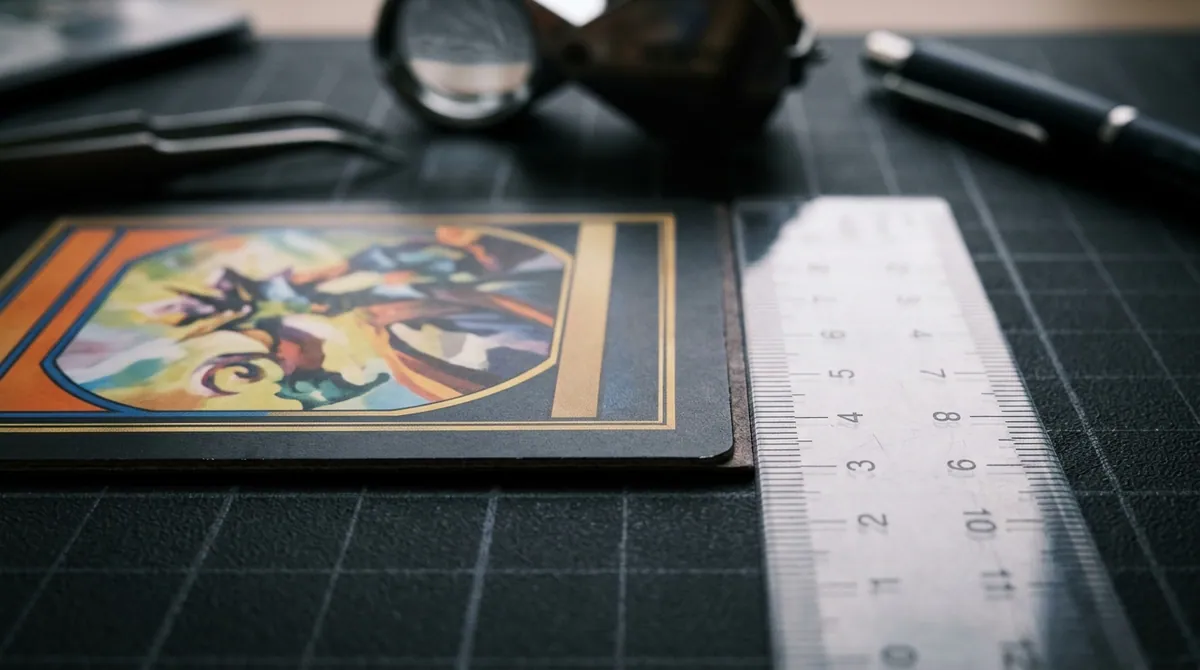
- Wipe the surface and clean your hands so you don’t add dust or prints while handling the card.
- Remove the card from the toploader or semi-rigid holder.
- Place the card flat on the contrasting matte surface, squared to the table edge.
- Turn on grid and level, then select the 2x or 3x lens.
- Hold the phone parallel to the card and line up the level crosshairs. The card should fill about 70 to 80 percent of the frame, with some background visible on all four sides.
- Tap to focus on a border. If white borders look blown out, lower the exposure slightly so the edge of the frame line stays crisp.
- Shoot two or three frames and keep the sharpest one.
- Rotate the card 180 degrees in place and shoot again. This is your control photo.
- Flip the card and repeat steps 5 to 8 for the back.
- Measure each photo. Zoom all the way in and record the left, right, top, and bottom borders in pixels, from the physical cut edge to the printed frame line.
- Run the rotate-180 test. If the card was 58/42 left to right in the first photo, the rotated photo should read close to 42/58. If the two readings differ by more than a point or two, tilt or distortion is affecting your setup. Re-level and reshoot.
- Write down the worst axis for the front and back, then compare it to the standard for the grade you’re targeting.
The rotate-180 test is the step most people skip, and it’s the one that catches setup errors. A tilted phone always favors the same physical side of the frame. When you rotate the card, a real centering shift moves with the card, while a tilt error stays on the same side of the photo.
Three ways to read the photo
Once you have a clean, level photo, you have three ways to turn it into a ratio:
| Method | How it works | Precision | Best for | Watch out for |
|---|---|---|---|---|
| Grid eyeball | Compare borders against the camera grid or by zooming in | Low. Only catches obvious misses | Quick sorting of bulk cards | Your eye is poor at telling 55/45 from 60/40 |
| Manual pixel measurement | Use an editor that shows crop size or cursor coordinates and measure each border | High, if the photo is level | Single cards you’re seriously considering grading | Slow. Easy to measure to the wrong line |
| Centering app or AI tool | Software detects the card edges and frame lines and calculates ratios | Consistent and fast | Checking many cards or comparing copies | Still depends on photo quality. Results are estimates |
For manual measurement, note that most built-in phone gallery editors don’t display pixel values. Use a free editor that shows crop dimensions or cursor coordinates, or send the photo to a computer and use any desktop image editor. Crop from the cut edge to the frame line on one side, note the width, then repeat for the opposite side.
Common phone mistakes that skew the numbers
- Shooting at a slight angle. Holding the phone by hand without a level is the number one source of error. Even a few degrees of tilt, up close, can shift the reading by a couple of points. That’s enough to cross the 55/45 or 60/40 line.
- Using the ultra-wide or macro mode. Edge distortion bends the borders near the frame edges.
- Measuring to the toploader or sleeve edge instead of the card’s cut edge.
- Letting a shadow widen one border. A dark line along one edge often looks like part of the border.
- Blending into the background. A white border on a white desk makes the cut edge nearly invisible.
- Losing the frame line to holo glare. Shift the light, not the phone, until the inner line is visible.
- Checking only left/right. Top/bottom misses are common and easy to overlook on a quick glance.
- Ignoring tilt in the print. On some cards the printed frame sits at a slight angle to the cut edges, sometimes called a diamond cut or tilted print. Measure each border near both ends and use the worse reading.
Borderless, full-art, and back centering
Cards with a clear printed border are easy to measure. Many full-art Pokémon cards still have a thin yellow or silver border you can measure to. Truly borderless cards, including some sports parallels and modern full-bleed designs, are harder. Graders still evaluate their centering, typically against design elements near the edges, but there’s no clean line to measure. Your phone reading on these cards is a rough guide at best, so build a wider margin of error into your decision.
Don’t skip the back. Pokémon backs have a blue border that makes measurement simple. Sports card backs often have a stat box or printed frame you can measure from. PSA’s published back tolerance is much looser than the front at most grades. Even so, a badly off-center back, worse than about 75/25, can keep an otherwise strong card out of a 10.
When a phone check isn’t enough (and when not to grade)
Be skeptical of your own reading in these situations:
- Borderline numbers. If you measure within about 3 points of a threshold, such as 57/43 to 61/39 for a PSA 10 target, assume it could go either way. Reshoot, re-measure, and make the call with the fee in mind.
- High-value cards. When a single grade step means a big price difference, get more eyes on the card. Use a ruler and loupe in person, a second tool, or an experienced collector you trust.
- Centering is one factor. A perfectly centered card with whitening on the edges or a surface scratch won’t grade a 10. Check corners, edges, and surface too. Our how it works page explains how a full pre-grade looks at all four.
Sometimes the right answer is to skip grading:
- If the front measures 65/35 or worse, the card falls outside PSA’s published range for a 10. If the card’s value at a 9 or 8 doesn’t clear the grading fee, shipping, and insurance, keep it raw.
- For modern cards with large print runs, check what graded copies actually sell for before you submit. Many don’t justify the fee unless they come back a 10.
- Never try to fix centering by trimming. Grading companies treat trimming as an alteration and typically won’t assign a numeric grade to a trimmed card. It also destroys the card’s value.
Using Card Grading AI for a faster centering check
Manual pixel measurement works, but it’s tedious when you’re sorting a stack of cards. The Card Grading AI centering tool is built for the phone workflow above. Take a level photo, and the app detects the card edges and border lines, then returns estimated left/right and top/bottom ratios for front and back. It’s the quickest way to compare several copies of the same card and decide which one is worth sending in.
If you want more than centering, the full pre-grade also estimates corners, edges, and surface. You can see everything included on our features page, or read how the model approaches condition in AI card grading. It runs on web, iOS, and Android.
One rule stays the same however you measure: a phone or AI reading is an estimate. Card Grading AI provides pre-grades to help you decide what to submit. It does not issue official grades, and it doesn’t replace PSA, BGS, CGC, TAG, or any other grading company. Use it to filter out the misses, then let the graders make the final call.
Ready to try it? Grab a card, set up the level shot described above, and run it through the centering check before your next submission.
FAQ
Can I check card centering accurately with just a phone camera?
Yes, accurately enough to screen cards. If you shoot straight down with a level, avoid the ultra-wide or macro lens, and measure border widths in pixels instead of eyeballing them, a phone check will reliably sort cards into clearly centered, clearly off, and too close to call. It is not an official measurement, so treat borderline results with caution.
Which phone lens should I use to check centering?
Use the 2x or 3x lens if your phone can focus at that distance. Telephoto lenses flatten perspective and show less edge distortion than the ultra-wide. Avoid macro mode, which often switches to the ultra-wide lens. If the image looks soft or the camera switches lenses on its own, move the phone back a little.
How do I calculate a centering ratio from a photo?
Measure the left and right borders in pixels, from the cut edge to the printed frame line. Divide the larger border by the total of both borders and multiply by 100. For example, 120 px and 80 px gives 120 divided by 200, or 60/40. Repeat for top and bottom and for the back. The worst axis is the one that limits the grade.
What centering does PSA require for a PSA 10?
PSA's published standards describe Gem Mint 10 centering as approximately 55/45 to 60/40 or better on the front and 75/25 or better on the back. The language says approximately, and wording can change, so confirm on PSA's official grading standards page before you submit.
Is an AI centering check the same as an official grade?
No. Card Grading AI provides estimates and pre-grades to help you decide what is worth submitting. Only a grading company such as PSA, BGS, CGC, or TAG can assign an official grade, and its graders may measure differently than any app or phone photo.
Keep reading
Related guides
Ready to inspect your next card?
Scan your cards instantly with Card Grading AI
Capture a clear front-and-back photo, review an AI-assisted condition estimate, and keep standout cards organized in your collection.