Collector guide
Card Grading App for Beginners: What to Look For
Choose and use a card grading app as a beginner: features that matter, real PSA centering standards, a hands-on checklist, and when grading isn't worth it.
By Matteo G.
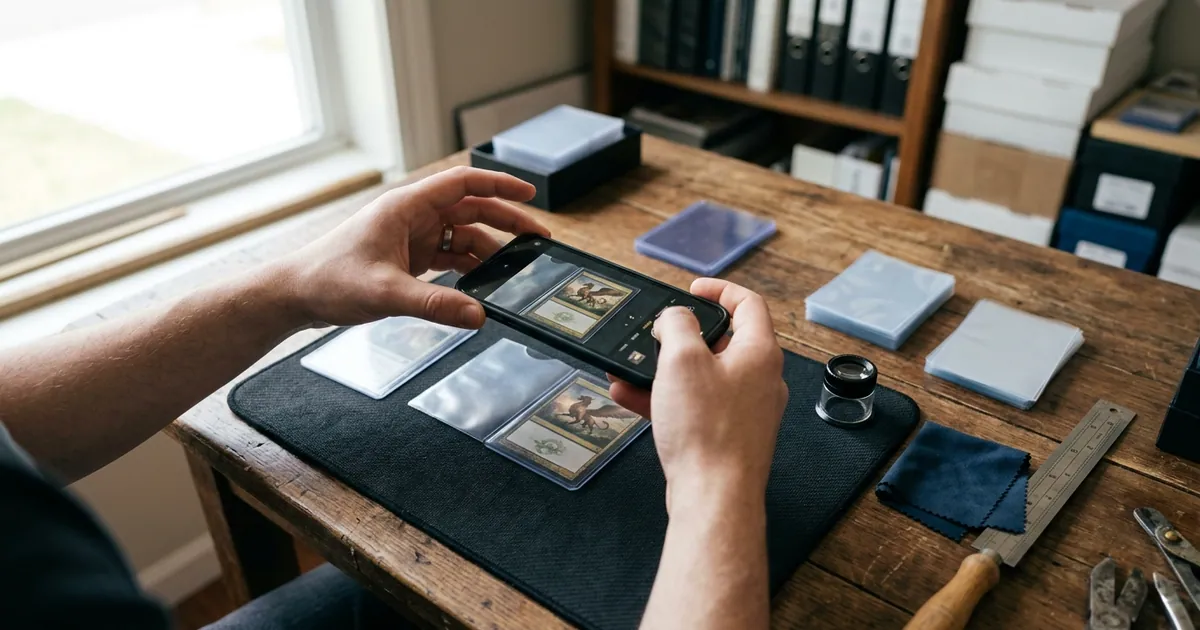
The best card grading app for beginners is one that shows you why a card looks like a 9 instead of a 10, not just a number. Look for an app that breaks condition down into centering, corners, edges, and surface, measures centering against published grading-company standards, and is honest that its result is an estimate, not an official grade. Use it to decide which cards are worth paying to grade, and which should stay in a binder.
Key takeaways
- A grading app gives you a pre-grade estimate from photos. Only PSA, BGS, CGC, SGC, TAG, and other grading companies issue official grades.
- The most useful beginner feature is a breakdown by condition factor, especially centering shown as a ratio like 55/45, so you can verify it yourself.
- Your photos decide the quality of the estimate. Flat card, diffused light, dark background, no glare, and a separate low-angle light check for surface.
- Base your grading decision on the grade one step below the app’s estimate. If the math only works at a 10, think twice.
- Plenty of cards should never be graded. Low-value commons, cards with visible creases, and cards you’ll never sell are often better left raw.
What a card grading app can and can’t do for a beginner
A grading app is a sorting tool. You photograph the front and back of a card, and the app estimates how it might fare against grading standards. For a beginner sitting on a box of pulls, that’s the real value: it turns we should grade these into a short list of candidates.
Here is what a good app does well:
- Centering math. Borders are measurable from a clean, square photo, so this is where software is most consistent.
- Flagging obvious damage. Whitening on edges, soft or rounded corners, and visible surface marks.
- Consistency. It applies the same criteria to card 1 and card 200, which tired human eyes don’t.
- Record keeping. Saving your estimate next to the card in your collection so you remember why you graded it or didn’t.
Here is what no app can do:
- Guarantee a grade. Graders handle the card in person, under their own lighting, and policies and strictness can shift over time.
- See what the photo doesn’t show. Fine scratches, light dents, and print lines can disappear in a straight-on photo with even lighting.
- Detect alterations reliably. Trimmed edges or pressed creases are a grading-company problem, not something to trust a phone with.
If an app markets its result as an official grade, an appraisal, or a guarantee, that’s a red flag. We built Card Grading AI around the opposite idea: a pre-grade that helps you make a smarter submission decision.
What to look for in a beginner-friendly grading app
Most comparison posts list features. What matters more for a beginner is whether each feature helps you learn to grade with your own eyes. This table is the checklist I’d use.
| Feature | Why it matters for beginners | Red flag |
|---|---|---|
| Condition breakdown (centering, corners, edges, surface) | Shows which factor is capping the grade so you learn what to look for | A single number with no explanation |
| Centering shown as a ratio | You can check it against PSA or BGS published standards | Vague labels like good centering |
| Front and back analysis | Back centering and back edges matter, and backs often show wear first | Front-only scans |
| Photo guidance and retake prompts | Bad photos create bad estimates; guidance prevents that | Accepts blurry or glared images silently |
| Clear estimate language | Keeps expectations realistic | Words like guaranteed, certified, or official |
| Collection saving | Lets you track which cards you scanned and decided to grade | Results vanish after each scan |
| Works on phone and web | Shoot on your phone, review on a bigger screen | Locked to one device |
| Transparent pricing | You know the cost before scanning a stack of cards | Hidden paywall after you upload |
You can see how Card Grading AI handles each of these on the features page, and how the scan-to-estimate process works step by step on how it works.
The standards a good app should measure against
A beginner-friendly app should anchor its estimates to criteria you can look up yourself. These are the ones worth knowing before your first scan.
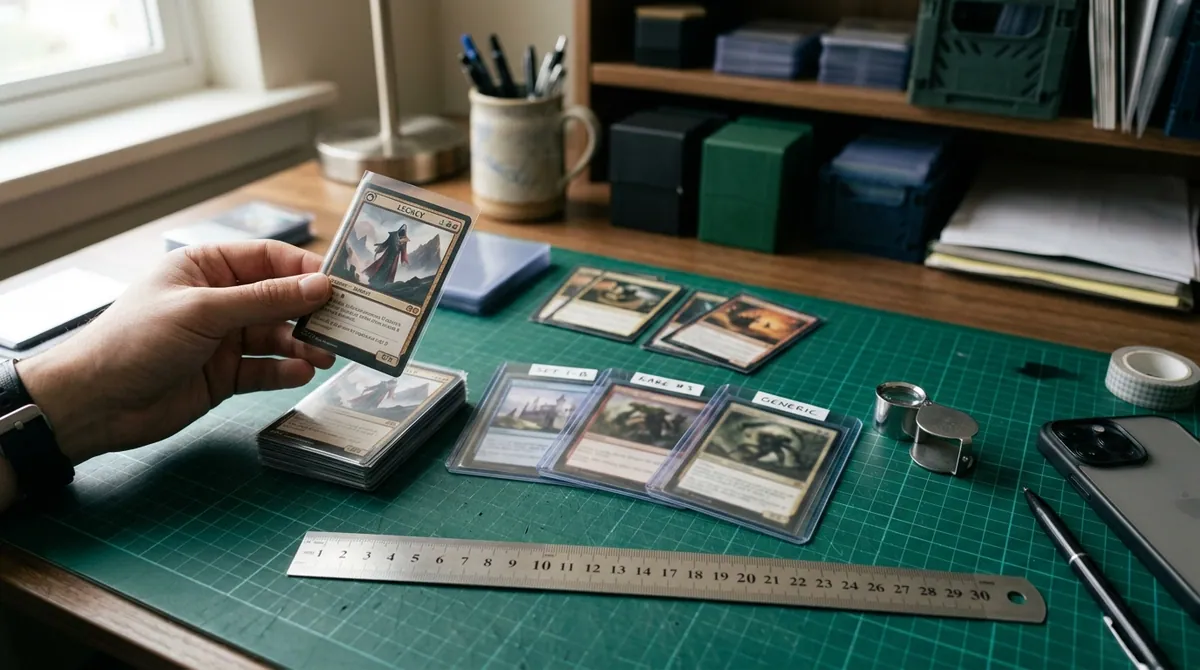
Centering (PSA). PSA’s published grading standards describe a Gem Mint 10 as having roughly 55/45 to 60/40 centering or better on the front and about 75/25 or better on the back. A Mint 9 allows roughly 60/40 to 65/35 on the front and about 90/10 on the back. PSA has adjusted wording on these standards before, so confirm the current numbers on PSA’s official site before relying on them.
Centering (BGS). Beckett uses subgrades, and its top Pristine 10 tier is known for near-perfect centering. Beckett’s exact tolerances per subgrade are documented on its site and are stricter at the top than many beginners expect, so check them directly if you plan to submit to BGS.
How to do the math yourself. Measure the left and right borders in millimeters. Divide the smaller border by the total of both. A 2.0 mm left border and a 3.0 mm right border is 2.0 / 5.0 = 40 percent, so the card is 40/60 left to right. Repeat for top and bottom. The worse of the two directions is what counts. A standard trading card is 2.5 by 3.5 inches (63.5 by 88.9 mm), so a millimeter here or there is a big deal.
Corners. At top grades, corners should be sharp under magnification. A 10x loupe will show fraying or a slightly rounded tip that looks fine at arm’s length.
Edges. Look for white specks or chipping, especially on cards with dark or colored borders. Back edges tend to show it first.
Surface. Scratches, print lines, dimples, indentations, and haze. These are the most common reason a card that looks perfect in a photo comes back a grade lower.
If you want to go deeper on centering specifically, our card centering tool walks through the measurement visually.
Step-by-step: your first pre-grade with a card in hand
Grab one card you care about and follow this in order. The whole thing takes about five minutes.
- Clean your hands and workspace. Wash and dry your hands. Lay down a dark, non-reflective mat or a microfiber cloth.
- Remove the card carefully. Slide it out of the sleeve or toploader without dragging the corners against the plastic.
- Do a quick naked-eye check. Hold the card at arm’s length. Any crease, bend, or obvious dent? If yes, stop here. That card is rarely a grading candidate for value purposes.
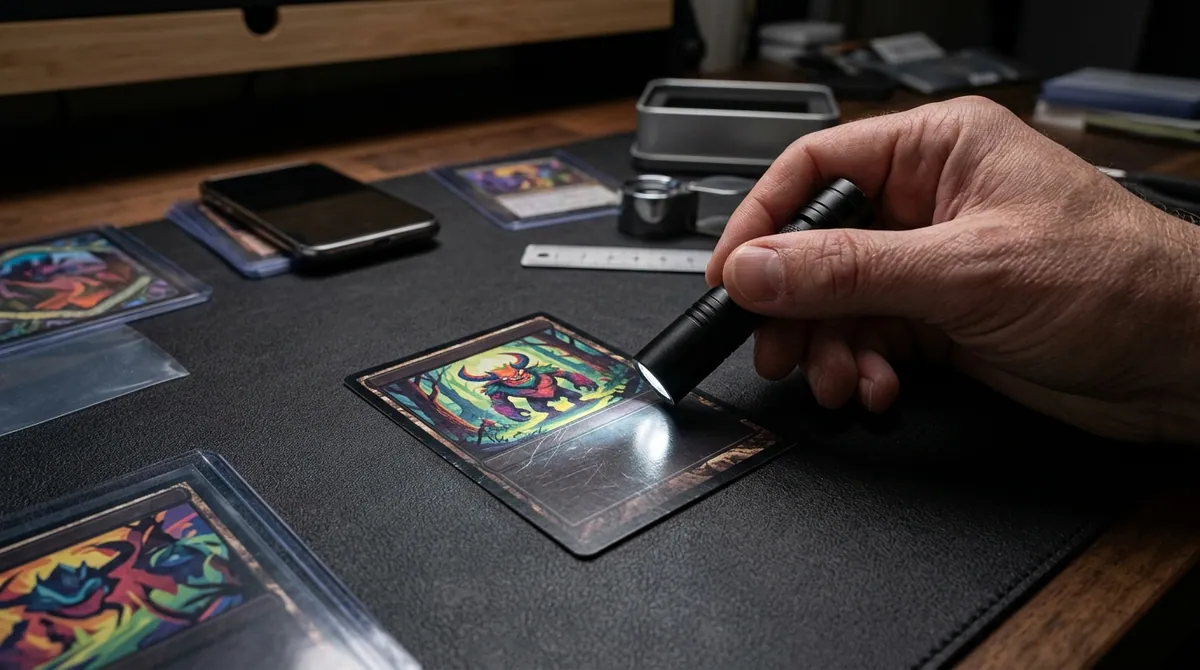
- Check the surface under angled light. Hold a small LED flashlight at a low angle, almost parallel to the card, and rotate the card slowly. Scratches, dents, and print lines catch the light this way. Note what you see.
- Loupe the corners and edges. Use a 10x loupe if you have one. Check all four corners front and back, then run along each edge looking for white specks.
- Set up for photos. Use soft, diffused light, such as daylight from a window or a lamp bounced off a wall. Avoid direct overhead light that causes glare on holo or chrome cards.
- Shoot the front straight on. Hold the phone parallel to the card so the borders look even and the card isn’t trapezoid-shaped. Fill most of the frame and keep it sharp.
- Shoot the back the same way. Back centering and back edges count.
- Run the scan. Upload both sides and wait for the estimate.
- Compare the app to your own notes. If the app says the surface is clean but your flashlight check found a scratch, trust the scratch. Retake photos if anything looks off.
- Save the result. Log the card with its estimate so you can compare it later against any official grade you receive.
That last step matters more than it sounds. Over time, comparing estimates to real grades is how you build your own eye.
How to read the result without fooling yourself
The most common beginner mistake is reading a pre-grade as a promise. A few rules keep you honest:
- Find the limiting factor. If centering scores high but edges score low, the edges set your realistic ceiling. Grades tend to be capped by the weakest area.
- Plan around one grade lower. If the estimate lands at a 10, run your numbers as if it comes back a 9. If it lands at a 9, assume an 8.
- Treat borderline centering as borderline. A card measuring right around 60/40 on the front could go either way at a 10. That’s not a strong candidate for a gem.
- Re-scan if the result surprises you. A big swing between two scans of the same card usually means a photo problem, such as tilt, glare, or blur.
When not to grade, even if the app says 10
Grading costs money and time. Fees vary by company and service tier and change regularly, so check each company’s current pricing. In general, expect a per-card fee plus shipping both ways and insurance, with higher declared values pushing you into more expensive tiers.
Skip grading, or at least wait, when:
- The value math doesn’t work at one grade lower. Look up recent completed sales for the card raw and graded. If a 9 sells for barely more than raw after fees, the submission only pays off at a 10, and that’s a gamble.
- It’s a common or bulk card. Unless it has personal value to you, grading often costs more than the card will ever sell for.
- There’s visible damage. Creases, bends, and heavy whitening will cap the grade regardless of centering.
- You’ll never sell it and don’t need protection or authentication. A quality toploader or magnetic holder protects a card for far less.
- You’re unsure about authenticity. Grading will catch fakes, but you’ll pay for the privilege. Learn the card’s known tells first.
Good reasons to grade include high-value cards where a slab adds buyer confidence, cards you plan to sell where graded copies command a clear premium, and personal favorites you want authenticated and protected for the long term.
Where Card Grading AI fits
Card Grading AI is designed for exactly this beginner workflow: shoot the front and back on your phone, get an estimate with a breakdown of what’s helping or hurting the card, and save it to your collection on web, iOS, or Android. It doesn’t replace PSA, BGS, CGC, SGC, or TAG, and it never claims to. What it does is help you spend grading fees on the cards most likely to justify them.
If you’re new, start small. Scan five cards you think are strong and five you suspect are average, then compare what the app flags against what your loupe and flashlight show you. You’ll learn more from that ten-card exercise than from any single article.
Ready to try it? See what’s included on the features page, check plans on pricing, and run your first pre-grade with Card Grading AI.
FAQ
Can a card grading app give me an official PSA or BGS grade?
No. Only the grading company that slabs the card can issue an official grade. An app like Card Grading AI gives you an estimate, or pre-grade, based on photos, which helps you decide whether a card is worth submitting and which cards to leave raw.
What is the most important thing a beginner should check before grading?
Centering and surface. Centering is measurable from a photo, and PSA's published Gem Mint 10 standard calls for roughly 55/45 to 60/40 front centering. Surface issues like scratches and print lines are the most common thing beginners miss, so check them under a low-angle light, not just in a straight-on photo.
Is it worth grading a card just because the app estimates a 10?
Not automatically. Compare recent sold prices for the card raw versus graded at one grade below your estimate, then subtract grading fees, shipping, and insurance. If the math only works at a perfect 10, the card is usually a risky submission.
Do I need special equipment to use a grading app?
A modern phone camera is enough to start. A dark, non-reflective mat, diffused light, a small LED flashlight for angled surface checks, and a millimeter ruler or loupe will make your photos and your own double-checks much more reliable.
Does Card Grading AI work for Pokemon and sports cards?
Yes. Card Grading AI is built for trading cards on web, iOS, and Android, including Pokemon and sports cards. Check the features page for the current list of supported card types and tools.
Keep reading
Related guides
Ready to inspect your next card?
Scan your cards instantly with Card Grading AI
Capture a clear front-and-back photo, review an AI-assisted condition estimate, and keep standout cards organized in your collection.